Log in
EN
FR

Nektar

42 products found

Categories
Series
Filter
Sort by
Evaluation
  • Reviewed or not
  • Editor’s award
  • Reviewed by Audiofanzine
Availability
  • Available or not
  • Sold new or used
  • Sold new
  • Sold used
Must-have products
  • All products
  • Flagship products
  • Best rated products
  • Hot products
  • Popular products
Price
  • Freeware
€
Clear
Sort by
  • Popularity
  • User ratings
  • Price - low to high
  • Price - high to low
  • Used price, increasing
  • Used price, decreasing
  • Name (from A to Z)
  • Name (from Z to A)
  • Added on
Choose a series
Sort results
  • Popularity
  • User ratings
  • Price - low to high
  • Price - high to low
  • Used price, increasing
  • Used price, decreasing
  • Name (from A to Z)
  • Name (from Z to A)
  • Added on
Filter results 42 results found
Evaluation
Availability
Must-have products
Price
  • Freeware
Show results

The best Nektar reviews

The reviews Audiofanzine members found the most helpful.
  • « Almost everything at your fingertips. »

    Nektar Panorama P6 Quick Specs 16 encoders 9 45mm faders 1 100mm motorized ALPS fader 10 LED buttons 12 pads Foot switch jack Expression pedal jack Keyboard after touch Pitch bend and modulation wheel 3.5 color TFT Display Big button Transport bar Getting Started This 61Key (semi weighted) Midi controller has a very professional gloss and feel that encompasses the devices “production” ambiance. Now, just because this controller was specifically designed with Propellerhead's Reason users in mind, doesn't mean it's not functional with other DAWs . Although it is compatible with a host of other DAWs, I'll only be able to speak of it's use with Reason. After installing the P6, Reason readily recognized the device. A quick caveat to that, prior to installing, ensure that your version of Reason has been updated as the latest firmware versions are only compatible with it. The P6 comes with 8 assignable knobs and 12 assignable pads for quick automation or sequence triggering. I was not overly enthused by their choice of pads for this device. I learned that I'm a person who likes a bit of motion to my pads. I like to feel the amount of pressure i'm putting on the pad through it's movement. With the P6, it made it difficult for me to judge my velocity on it's pads. They are quite hard and overly sensitive in my opinion. Although there is an extensive sensitivity settings menu (soft, medium, or hard :D), I was not able to find a happy medium where my particular style of finger drumming was comfortable. Finger drumming aside, the pads are great for triggering sequences or selecting devices on the fly. The P6 also comes with a moving fader that works very well for tracking. I also use a Presonus Fader Port and by comparison, the P6's moving fader calibrates itself just as accurately. With two settings, Read and Write, making volume automation changes to tracks quickly and with confidence is a snap. Bringing us to the main attraction, the Control Center. The 3.5in color TFT display makes it easy to see exactly which parameter and midi options are being selected. The quick navigation between the instrument, mixer, and internal screens make for on the spot CC assignments, sound design, and mixing. With full control of every Rack Extension, there is really no need to look up from the control screen of the P6 accept to add a new instrument or effect in your DAW. Having your transport bar right at your tips makes workflow also that much faster. Overall The look and feel of the P6 is very professional. It's capabilities go well beyond my scope for a midi controller, but the options for a broad workflow palette are available nonetheless. Pro's Sturdy and very well built. Can handle being on the road with no problem in my opinion Makes mixing and automating virtually seamless. 20 Assignable presets. Makes gig setup a breeze. Con's My biggest con for this device is it's installation process. At times the device (for one reason or another) wouldn't be detected by the DAW and the only way to get it to work was to uninstall and then reinstall all of the drivers and firmware. A process that really needs to be revisited by the manufacture because it is inefficient. Although Nektar does provide adequate tutorials on how to install the device, still, the complexity of the install is a bit overwhelming. However, your frustration level is relative to the type of person you are. If elongated process' are not your forte, you'll be definitely putting yourself up to a challenge of patience.

  • « Impact 61 Review by C-Los »

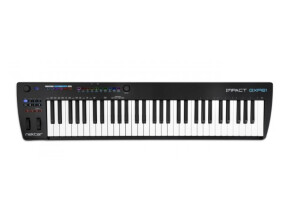
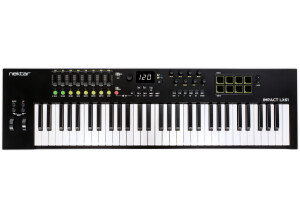
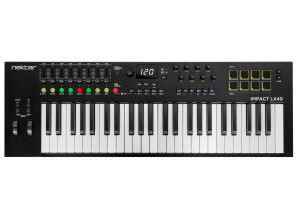
    A great MIDI keyboard controller with all of your desired features is hard to come by today. Either they keys are too flimsy, or there aren’t any drums pads on it, or it has everything and it costs - everything! For my budget and my needs, Nektar’s Impact 61-key controller is a great compromise. I was working with a used M-Audio Axiom 49 controller before I bought my Impact 49. Being very big on playing chords and very dynamic pieces in my productions, 49 keys were not enough space for me to produce my music freely without having to hit the button in order to reach the notes I needed. UTILIZATION I use my Impact controller for everything. I produce my music a Maschine MK1 hardware and Logic Pro X software. I can controller any software instrument I have in my arsenal, and almost any parameter within the instruments or plug-ins. One thing that I can do with this board that I could not do before, is control individual tracks in my mixer within Logic, without worrying about accidentally moving a fader I did not intend to move. This is possible because the faders will remember their position (and within banks). This means that if I set Track 1’s fader to -6db and I move the same fader to control Track 9 and then grab Track 1 again, the fader will not move until I physically move within my DAW until I cross that position with the controller. This is very useful because I prefer to move faders vs. clicking and dragging a mouse to do everything. I can mix entire songs if I want to. The ability to enable cycle mode, record, play and stop are very useful as well. I’m able to control my DAW right from my MIDI keyboard. GETTING STARTED Right out of the box, the Impact 49-key controller has 9 faders, 8 knobs, and 8 pads. The controller is also able to transpose your keyboard with the touch of a button. Most keyboard controllers are only able to shift your keyboard by octaves. If you’re a beginner piano player, this could be useful in tight situations like not knowing a song in a different key than the one you practiced. The pads feel very soft and comfortable. What’s very cool about the pads is that they are programmable as well. On my Axiom 49, the pads control a fixed midi note. With my Impact 49, I can assign any one of my eight pads to any key on my keyboard according to my liking. Nektar also comes with Studio One Artist to get you up and running. But what makes this board special is that you can set it up specifically to function with your favorite DAW (except Pro Tools), allowing you to control parameters within your virtual instruments. You can also bring up your mixer and jump to different tracks at the touch of a button. As much as this board satisfies my needs, there are two things I would have liked to see different. I am big on the keys themselves on a keyboard so I prefer them to be weighted. The keys are “synth” like so they do feel sort of like a toy keyboard. My other gripe would be about the knobs. In contrast to my Axiom, the knobs on my Impact 61 are not 360 degree rotatable. I would think it’s possible, but I am not sure if I will be able to pan my tracks as well as I would with my previous keyboard controller. But they are definitely useful in controlling all of my other parameters on various plug-ins, so all is not lost. PROS Full integrable with your DAW Fader memory Transpose feature Mixer access Assignable pads Affordable for bedroom producers CONS Synth-like keys Knobs are not 360 degrees rotatable

  • « Reason 6 users must buy this asap »

    The reason that I like using the Nektar Panorama P4 so much is because there are so many knobs on it that are MIDI ready to be synced up with whatever you would like in your program. Most people look at this keyboard as having knobs that really don’t do any specific thing so why purchase one with all these knobs. If you are just wanting a MIDI keyboard to just control your virtual keyboard to play notes then don’t waste your money on the Nektar Panorama P4. The P4 is an in depth MIDI controller, you will need to have an understanding of how to use the MIDI learn options in your DAW or production software. UTILIZATION This MIDI control surface is built to be used for Reason but you can expand and use it with other programs if you want to use it differently. The cost of this MIDI control surface is a little more expensive then I wanted to spend but it is well worth it for anyone who needs these knobs so they don’t have to touch the mouse button all the time. There is also an LCD screen on the P4 plus a motorized fader and 12 pads that are fully assignable. OVERALL OPINION If you are a Reason 6 user than this is a must have immediately. It will make your work flow so much quicker and easier. I am not sure how it works with different versions of Reason but with version 6 you really don’t have to do anything at all to set it up, it is ready to go right out of the box once the drivers are loaded. I have been using this for over a month with Reason 6 and I learn something new all the time, it has made my music process so much quicker. With 9 total faders and one of them is motorized, MIDI in and out with 49 after touch sensitive keys. You can not afford to not have this controller. There are a lot of controllers on the market and a lot of them are really good. But this one is great perfectly for Reason users.