Log in
EN
FR

MIDI Control Surfaces

939 products found

Categories
Filter
Sort by
Brand
Evaluation
  • Reviewed or not
  • Editor’s award
  • Reviewed by Audiofanzine
Availability
  • Available or not
  • Sold new or used
  • Sold new
  • Sold used
Must-have products
  • All products
  • Flagship products
  • Best rated products
  • Hot products
  • Popular products
Price
  • Freeware
  • Low-cost (< $200)
  • Mid-range ($200 - $500)
  • Premium (> $500)
€
Clear
Sort by
  • Popularity
  • User ratings
  • Price - low to high
  • Price - high to low
  • Used price, increasing
  • Used price, decreasing
  • Name (from A to Z)
  • Name (from Z to A)
  • Added on
Sort results
  • Popularity
  • User ratings
  • Price - low to high
  • Price - high to low
  • Used price, increasing
  • Used price, decreasing
  • Name (from A to Z)
  • Name (from Z to A)
  • Added on
Filter results 939 results found
Brands
Evaluation
Availability
Must-have products
Price
  • Freeware
  • Low-cost (< $200)
  • Mid-range ($200 - $500)
  • Premium (> $500)
Show results

The best MIDI Control Surfaces reviews

The reviews Audiofanzine members found the most helpful.
  • « A Specific Mixing Control Surface »

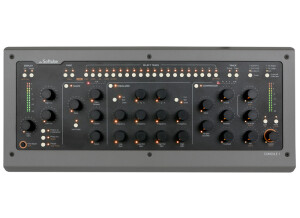
    Used with a Mac and Studio One Pro 3. It is a surface control with the specific controls of a channel strip organized into 7 sections: - input level, low-cut and high-cut filters a phase inversion - gate and transient control - 4-band EQ with selectable frequences and Q… - compression with selectable values for ratio, threshold, attack and release time (gain is automatic) - controls for drive and character (the latter to provide an analog color to the sound) as well as output level, plus two solo and mute keys Finally, on the up and down sides, two series of controls for tracks, presets or plug loading (I’ll detail these later on). Nothing too fancy so far. There are some well-done video tutorials around. The device is wonderfully designed, all made of metal with readable indications, quality knobs and control keys which are well enough spaced for anyone – even those among us with big fingers –, and LEDs everywhere to make it more readable. Let’s get straight to the point. This is a USB- supplied MIDI control surface with no DSP, aimed at controlling not only a collection of Softube plugins emulating professional consoles but also some Universal Audio plugins since version mkII. Please note that: - the SSL4000 plug-in comes with the device - two other consoles are emulated, plus some sort of plugin recycling that can count as a third one (Summit Audio Channel). Other models are rumored to be in the making. - All UAD plugs are not emulated, notably the channel strips (!!!) so check the list of available plugins So if you’re not a UAD user, it’s not obvious that getting this device should be a priority for you. There are of course exceptions (listed below). Depending on the piece of software that you use, you can control the pan, volume, select a track, solo and mute. Well, some DAWS but not all: so far, I believe Sonar and Studio One to be the ones with the best integration (though they’re not the most used. Most parameters featured on the surface can be automated. Regarding its ergonomic aspect, the manufacturing quality and clear (as well as rather classic) layout of the parameters make it a comfortable, intuitive (almost instictive) and easy-to-use surface. But what makes a big difference is Softube’s cleverness to NOT hav but tiny or badly-oriented LED Screens, but to consider how obsolescent such screens are especially while such a device is bound to be used with a real screen. So? Well, just press a small button labelled DISPLAY and you get everything appearing on your screen – all controls, and even 4 display modes! There are two annoying things however: the absence of a transport bar type control and of a motorized fader – a real pity! That would have made it the perfect device. So yeah, I know, Softube has stated before that the Console 1 ONLY aims at controlling the parameters from a single channel strip… But that doesn’t rule a motorized fader out. Finally, in a mixing context, a transport bar is useful, Native Instrument have understood the ergonomic interest of it as they have featured one on their keyboards. While here, you’ll have to use your keyboard and mouse, or invest in a surface control with a transport bar and fader… So, to make it short, a Console 1 mkII with a faderport behind would have been as close as it gets to plain perfect. Now, one can wonder if it’s worth the €500 it costs. I’ll now get to what motivated me to purchase it. First, the excellent SSL plugin that comes with it. As I have neither the budget (purchase, service…) or space to own such a console, a great emulation with physical controls (which is more or less what this product is about) is a real asset. But it’s of course all about tastes, so it’s up to you to decide if this is for you or not. This one plugin has replaced a whole series of plugins that I used before, it’s incredibly efficient and as usual with great plugins if you barely change one parameter and it sounds good then it’s great. Also, I’m a UAD user… (a question of tastes, again). Finally, I intend to buy an 8-fader controller anyway, but for a tight budget that could be a real issue! Edit from September 2018: This one is VERY sturdy: it fell twice from my deck – I have a 2-year-old daughter… Except for a slightly bent corner, it still looks in its prime! It would deserve an extra half-star...

  • « A perfect complement to maschine studio »

    What configuration, software and other gear do you use with this MIDI control surface? In what context? What are your thoughts on its stability? I already owned maschine studio soi t was quick to install (5 mn). 2 expansions (to be chosen) were offered for Maschine owners. Do you find the different features and controls to be ergonomically designed? Is MIDI mapping straightforward? Yes, it’s a perfect complement to Maschine, it brings a lot of additional controls. Now, I haven’t done mapping for third-party softwares. What are your thoughts on the feel of the controls and keys in terms of robustness and precision? Good overall quality. The touchstrips sometimes lack precision, but you can adjust things precisely with the shift + touchstrip command. What are the pros and cons of this product? Pros: - step sequencer - mix with touchstrip - DJ effects with performfx - arrangement (finally !) simpler with the Song mode and quick update - piano roll , keyboard mode, and touchstrips in note or chord modes allow for easier composition - parameter morphing (a very creative feature) with the shift + lock mode - enhanced sound design with touchstrips in Controls, Tune, Aux modes. It’s also possible to save these parameters as snapshots and to morph between them (an excellent feature) Cons : - no realtime timestretch... - I would have likes a possibility to control the velocity and length of notes using the touchstrips in step sequencer mode. - No pad velocity. - Not enough visual contrast on the pads, you can’t alway see which pad is selected. - No screen, so you look at the computer more often. - Many parameters are difficult to access if you have neither a maschine studio or mk, or you have to do it on your computer using the mouse. - No controller unsync, while I would have liked a possibility to work on two different groups or instruments simultaneously.. Overall : This maschine jam has largely enhanced my workflow, both in speed and creativity for composing, sound design, arrangement, mix and live. I’m really having fun!!!! It’s still not perfect, but NI are known to provide regular updates. Still, I’d mostly recommend it as a complement to a maschine studio or mk, as by itself it makes your workflow more dependent on a mouse.

  • « After a few months of han... well, feet-on experience using it... »

    I wanted a new MIDI pedalboard to control my brand new Axe-Fx. Experience has taught me that while playing in the night time is not a problem, playing outdoor and in the sun in something else: reading the indications on my previous MIDI devices’ screens was most often very difficult with a natural high luminosity, which had been a problem on multiple occasions. So I was after an easilt readable foot controller to come with my new “precious”. RJM Mastermind GT pedalboards seemed to match my criteria, but it’s always difficult to know for sure without trying one, and getting your hands on one in France where I live was more than difficult… So I decided to trust web reviews, and since the pedalboard is fully configurable this 16-button version seemed the most adapted to my expectations. The pedalboard (which I bought from the brand’s official European dealer in Germany) comes in a sober (yet protective anough) cardboard box. Along with the pedalboard itselt, you get a power supply, a USB key that contains the software and a manual in English. RJM’s website features the latest version of the soft which can easily be used to load into the pedalboard. I use the 7-pin MIDI connector for power supply. Be cautious as the phantom power mut not in any way get through the Axe FX, as the pedalboard’s consumption is superior to the Axe’s capacity. Adapters exist, but I made one for myself. I added 2 expression pedals directly plugged to the MMGT. Be cautious again, as the jack connections must be crossed with those of the Fractal pedals. The pedalboard’s configuration is very simple and rather intuitive. The pedalboard is programmable, either autonomously using its buttons or using the MMGTEditor software through a USB connection. For those who won’t bother configurating it, there are presets for a huge majority of controllable devices. Just select your device in the list (Axe-Fx II+ in my case) and all buttons are assigned to the maint functions with the right CC#. The two expression pedals that I’ve added are even already set up in the MMGT. The pedalboard also can go further by controlling several devices. Pressing a single switch, you’ll then be able to switch the Axe’s scene, change a parameter then send other codes to other devices chained to it –MIDI switch…). Each of the 16 footswitches can be configured, the actions, order, colors (On/Off independent), texts, control hold (and time), double click, button groups, macros, tuner, looper management and even more… The pedalboard features its own configurable setlists (which I don’t use as I use the Axe-Fx’s order). I play in a cover band. Each song on our setlist has its own preset. The Axe features 8 scenes per preset, but I currently only use 4 scenes at most per song. So, I remapped the bottom row with 5 scenes (one more, just in case – you never know) and the button on the far right of the pedalboard: Preset + (next song). Long button hold = previous preset. The row next up to it allows to view and/or directly load the 5 closest song presets, plus a “previous preset” button (which is actually redundant with the long hold on the button downstairs, I may change it for a “preset #call”). Finally, the 2 buttons on each side of the main display are used to launch: - the tuner - view of modify tempo - access other pages (I set page 2 for a preset access via bank+/bank-, with presets 5 by 5), or direct preset call through its 3-digit number (the MMGT allows up to 16 pages). - IA mode allows to access the Axe’s different blocks (which I don’t use while playing a song as I change scene instead – so two pages are enough for me) The whole can be configured as you like. For instance, I set up two independent tuners, which is quite practical. As I like to view the tuner during some solo parts and I’m used to play my solos in scene 3, I’ve configured the buton 3 so that it activates the tuner after sending the scene CC, while the 1, 2, 4 and 5 buttons set the tuner off. However, in between songs, I need to mute to tune my guitar. And as I’ve set the Axe so that it doesn’t mute in tuner mode (well, that’s not something you’d like during a solo, is it?), I set the tuner-dedicated button so that it sends the 0 value to the OUT1 & OUT2 volumes, and back to 127 when pressing again to exit the tuner mode. I’ve only used this pedalboard for a few months, but it’s perfectly up to my expectations: configurable at wish and rather easily. Te displays are very easy to read, even in the brightest sunlight. The text is easy to read. At night or in dark ambiances, I set the luminosity down (as light, contrast and colors are all adjustable). This pedalboard isn’t cheap, but to me it’s well worth its price. What remains to be seen is how it lasts. The switches seem sturdy, as for the display (as many as there ar switches + the main display), time will tell. Finally, the designers are very receptive and reactive – you just have to see how quick they react when someone asks for a precise improvement on the dedicated forum. Updates come in no time...

  • « A wonderful experience to play »

    If anything was 'perfect' this instrument would have got my vote. I've had an Alpha since they first became available. While they are able to act as a MIDI controller, they are really a complete instrument by themselves, have several 'internal' sounds and can host virtually any AU or VST. The Alpha is exquisitely made and is, as a result, expensive. (The Tau is essentially the same and very reasonably priced) What do I like? - it is incredibly tactile and expressive, well beyond what MIDI is capable of - there is total configurability - one can load multiple AUs/VSTs at the same time and play them simultaneously or sequentially in multiple keygroups - It has an excellect mic-pre and headphone amp built in - all information (including mic and in-ear monitors) flows through a single cable (mine is 80Ft long) giving complete freedom of movement - The ability to configure the instrument and SW has greatly improved and continues to be refreshed Knowing what I know now: - if I were buying one now, my only wish would be to have bought earlier at a better price Is there a not-to-like - it has quite a learning curve and the keys are *so* expressive they take practice (like playing a fretless instrument) - You can play any hard or soft synth right out-of-the-box using factory setups but advanced customization and making your own setups can be technically challenging (this has improved greatly)

  • moosers's review

    The Digidesign Icon D-Command is the largest and most in depth digital audio work station controller designed for Pro Tools. This isn't a console in the traditional sense - it merely controls parameters and features in Pro Tools. When compared to the other Digidesign digital mixers like the Control 24, the Pro Control, and the 002, the Icon has a lot more controls to offer, and will also take a bit more practice to get used to. This being said, if you're familiar with Pro Tools and know a little bit about mixers, everything will be pretty self explanatory on the Icon D-Command. The mixer has 24 'channels' with faders, solo, mute, record enable, as well as panning, and some programmable parameters. It controls everything that you see inside of Pro Tools - nothing more, nothing less. Honestly, this is the type of mixer that you want in a large studio to impress clients and to have as a main stay in your system when you have outboard pre-amps already. It doesn't actually make any sounds of its own since it doesn't have any built in mic pres, and you don't even really run your system through it like you would a traditional console. The Icon D-Command is designed for professional Pro Tools users who don't want to do everything inside of the box and want external control that isn't satisfied by the lesser models I previously mentioned. It is quite a beautiful looking piece of gear, and certainly has a lot of allure, but it will cost you a serious amount of money for something that doesn't even add anything to your sound. However, if you're putting together a professional studio and want a very in depth control surface for Pro Tools, it doesn't get much better than the Icon D-Command.

  • « So many options. Worth it for the price. »

    The Novation Launchpad combines elements of a mixer, a sequencer, and an effects rack all in one 64 button pad designed to interface with Ableton Live. As I mainly use Ableton I'm not sure whether you can program it to work with other DAW's, but the interface with Live is one that is very flexible and easy to learn. If you are one for triggering clips, the Novation Launchpad is certainly for you. After the samples, midi files, etc. are triggered - indicated by the corresponding button lighting up green - there are infinite ways of manipulating the signal thanks to the User 1 and User 2 interfaces, which are completely customizable. I'm fond of setting one user interface to automap effects in real time while leaving the other as my "solo" instrument, wherein the buttons act as a keyboard. On top of this the Novation Launchpad is the lightest, most compact, and surprisingly the most durable piece of equipment I have had the pleasure of using. My issues with the launchpad are simple: the keyboard scale is easy to figure out but is difficult to master coming from a standard piano background, the quantization settings for audio vs. midi clips are a bit confusing, and the buttons aren't the best replacement for faders. For the price however, this isn't a bad buy. In fact it's a very good buy compared to Ableton's other hardware interface, the APC-40. Just be ready to practice, practice, practice if you see yourself doing an entire set on this device, and maybe have a separate mixer on hand to get a more precise fade.

  • « Where have you been all my life? »

    I have for many years played various instruments both physical and electronic - but this was the first instrument I ever came across that truly combined the best of both worlds into an accessible, expressive, playable form. The sensitivity and the expression you can obtain from the Eigenharp keys makes it feel like a physical instrument. All the subtlety and happy mistakes of learning a physical instrument are available in the Eigenharp - yet you can detune those parameters to make it less sensitive, hence easier to play and sound good sooner. This is unlike any instrument you've played before, so there is a steep learning curve. It is, however, a curve well worth climbing. Not just because you get more from your Eigenharp, but I found it helped me look at music and playing in a new and better light. I learned about more than just the Eigenharp when playing it - it helped manifest aspects of music I had never thought of or encountered whilst struggling with the physical aspects of other instruments. Because the Eigenharp uses virtual synthesis with AUs/VSTs you can play pretty much anything you want and sound good. The sensitivity of the keys in 3-dimensions allows you to affect the parameters minutely so I find it particularly suited to modeled instruments like guitars, breath instruments and pianos. You can bring that human variation to the sound. Of course, the filtering and parameter control you can apply via these sensitive keys to true synthesizers produces interesting opportunities, too. The Tau is priced at the point of a decent guitar or keyboard. I think you can get a lot more out of the Tau and so is better value for money - there is however the need to learn how to get this value, which takes time. Unlike learning with a cheap guitar before you upgrade, there is no cheap alternative to the Tau. The smaller/cheaper Pico (which I also own) helps introduce you to Eigenharps, configuring them and the basics of the keys, but IMHO its more a controller than an instrument like the Tau. Making music with the Pico requires more layering and looping, which is different in style to playing the Tau and Alpha (though the same techniques can apply). Its like learning the ukelele vs. the guitar. Helpful but not the same. There is not much help out there to learn to play the Eigenharp. There's plenty of info and community support for the configuration and use, but not the playing. So I wrote a few apps which I've shared to improve this (see http://eigentab.net) but it remains a challenge for noobs. But like most instruments, playing and discovering is the best way to learn - and the Eigenharp is a delight to play. One of the best aspects of the Eigenharp is the community - which includes players and the staff of Eigenlabs. There is always someone willing to help. If you find a bug or have a suggestion response is rapid. There's even regular Google hangouts if you want to talk/play together... Knowing what I know now? Yes. Absolutely. In fact, I thought of the Tau as an entry to the Alpha - but I'm not sure I would swap. I like the solidity, robustness and style of the Tau. I don't miss the extra keys and the software/capabilities are exactly the same. If you're thinking Eigenharp and the price of an Alpha gives you a nose-bleed : go Tau! You won't regret it. PS. To classify it a "MIDI controller" is to misunderstand what you get with an Eigenharp - you really need a new category.

  • « nice feel »

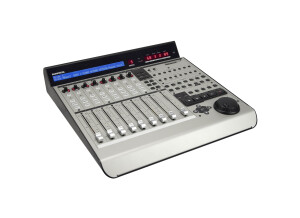
    The Mackie Control Universal Pro gives you smooth fader control with the responsive feel of some very expensive analog boards from years past. The faders are touch sensitive 100mm, and they are motorized. There is a full meter display that will show you the parameters and track names. There are some effects on this unit but nothing that really made me say “wow”. All of your basic functions are also there and easy to use like pan, solo, and mute functions. When you get the Mackie Pro I recommend looking at the manual even if you have used similar boards before, or even if you have used the Mackie C4 because some of the functions are different and this unit has some more features that are really helpful. This console is made well, all of the knobs are solid and the faders are “heavy” with good response. This control surface has over 50 buttons and can even be used via USB. The price point is decent, I think it could be a little cheaper though because there are some other boards made by its competitors that cost a little less but are virtually the exact same board. Also the display screen could be just a little bit bigger on it so that it is easier to read or maybe even a full color display since this unit cost over a grand. But if you do not mind looking at this type of display then it will not be an issue. Or you could always hook up an external display screen and have any size screen that you want. The Mackie Control Pro is a great choice to go with because of the quality and features that it provides. Mackie will also provide you with excellent customer service if you have any troubles with this device. I am happy that I purchased this!

  • « Akai headed to the future »

    Unlike any other MPC, the Renaissance is more geared to work with your computer set up better than the other models that have come out. You will get the real MPC pads on the Renaissance which are what all MPC enthusiast love and have to have. You will also get all of your basic MPC functions like MPC Swing. But the main place where the Renaissance sticks out is that it can synch with your computer in ways that the other MPC’s just cannot do. The Renaissance supports all of your standard audio file formats like WAV, MPC3 and it can even host VST plug-ins. It comes loaded with a ton of sounds, over 6 gigs of sounds. You will be able to use the Renaissance on a Mac or a PC and whichever one you use it on. You do not have to worry about problems syncing them up. It is pretty much automatic and can be done in seconds. You will also get a vintage mode that will give you the sound of the MPC3000. It would have been nice to get the sound of the original MPC 2000 but we will settle for the 3000. The Renaissance gives you a 64 bit sequencer and sampler but the area where I feel that it lacks is with how easy it was to find what you were looking for in the original MPC’s. For some reason they have changed some things up, to some people they might be minor things. But for people that have used MPC’s for a decade, then they come out with this one and some of the Menu options are different and sub menus are a little different (mainly just switched around) it can become very frustrating and felt like I had to learn the whole system over again. But overall, you will love the new things you can do with this MPC over how the older ones used to be. I you are still using a previous model MPC; I do not think it is worth the upgrade to the Renaissance. Just stick with what you have and what you know. But if you are new to the MPC and getting your first one, then this will be a great start toward the new direction that Akai is going.

  • « Ridiculous control surface »

    The Digidesign C24 is one of the ultimate control surfaces out there. Simply put, it has pretty much everything you can think of and then some. Starting off with features, this thing has 24 bankable strips, touch-sensitive motorized faders, 16 high quality mic/line/DI preamps, 8x2 stereo line submixer, 5.1 surround analog monitor section, talkback mic inputs, dedicated mute, solo, record, select, EQ, dynamics, send and insert switches, along with illumination for each of them. There are probably more features that I’m forgetting, but those are the main ones. There’s a bit of a debate throughout the audio engineering world at the moment. One school of thought says that you don’t need these control surfaces. They take up too much space, and you can do everything they do in the virtual environment. The other loves that analog feel, and they also realize that these offer faster on-the-fly tweakability that a digital environment might not be able to provide, even if it’s a touch pad one. I actually don’t feel these are that necessary for most beginner studios, but once you start getting major acts in your studio, a control surface such as this really helps when it comes to fast tweaking. A friend of mine owns a studio, and I’ve had extensive usage with this when I go over to record some of my material. This thing is just amazing in terms of what it can do. I could list all the various different things you can do with this, but I have a feeling that anybody who is looking to buy one of these already knows all the features. What I can comment about is that it’s extremely reliable. I never experienced any failures or unresponsive controls. I’m not sure exactly how old his C24 is, but it has a good amount of time on it. They’re expensive, but if you can afford it, I say go for it.

  • moosers's review

    The Digidesign Pro Control is a motorized MIDI based control surface for use with Pro Tools systems. There are eight faders, but you can scroll through for as many tracks as you might have. Let me start off by saying that the Pro Control has a ton of features to them, a lot of which I have never delved into, simply because I feel I don't need to use the controller for everything. However, what I have used on this controller, I have found to be quite useful and convenient. It makes it easy to mix, as I like the feel of the faders, and the programmable knobs come in quite handy as well. The metering system is really nice and helpful when getting levels. Since the Pro Control doesn't have pre amps, and it is simply a MIDI controller, this is by no means an essential piece to your digital audio workspace. It is convenient and a lot of people like the feel of real faders and knobs, and makes it possible to not have to just mix and do everything inside the box. The price of one of these isn't all that expensive, but isn't a bargain by any means. I think another reason a lot of people like having something like this is to impress the clients! If you go to a studio that has just a computer and no board, it simply doesn't look as convincing. This definitely does everything it advertises and is nice luxury to have, but isn't essential to the home studio owner. I would also recommend the Mackie Control 8 and HUI, the Tascam US2400, as well as the other control surfaces that Digidesign has to offer. All in all, the Pro Control is a well made product that is definitely worth a look for those interested in control surfaces.

  • moosers's review

    I first purchased the Mackie HUI about three years ago and have found that it is a very powerful machine in terms of controlling a DAW. I have used it both with Steinberg Cubase SX 2.0 and Pro Tools LE 7.4. I got it because I wanted to be able to feel fader and twiddle knobs while I was mixing inside the box of my DAW. There are controls for virtually everything you can think of in your DAW. It has great metering and is overall a good looking unit. While it is easy to follow and learn how to use, there are still a lot of things I don't know about it, simply because there are not enough hours in the day. Since it only merely controls something that you could control inside your software, I use what I find most useful on this and haven't delved into other parts of the machine. For example, while you can control plug-ins with this machine, I decide to control them within in my software because I like the look of it. However, it is there for people who would like to use it. While there have been a few different models that Mackie has made since they made this one, like the Universal Control, I like the overall look and features on the HUI the best. I would also compare it to the Digidesign 002 and the M-Audio Project Mix. I would also favor the HUI over these, but that could just be because I have used the HUI extensively, and haven't used the others as much. Another great feature of this board is the two on board preamps that can prove to come in handy! While they aren't the best pres in the world, they definitley aren't the worst! The fader also have a great feel to them and have LEDs above them indicating which track is which. If you are looking for a board to play with outside of your Digital Audio Workspace, and you can find one of these on eBay (as Mackie no longer makes them), I would recommend giving this a try! While it is really just a big toy and is fun to play with, it can really help sometimes to have some faders to play with when you're mixing.